

Connect from Robo 3T to Atlas

A quick recipe to set the connection options in Robo 3T when accessing to an Atlas MongoDB:

1.- Reveal the connection string from Cluster Atlas console (Connect button at your cluster)

Select the “Connect your application” option and a pop-up window will open
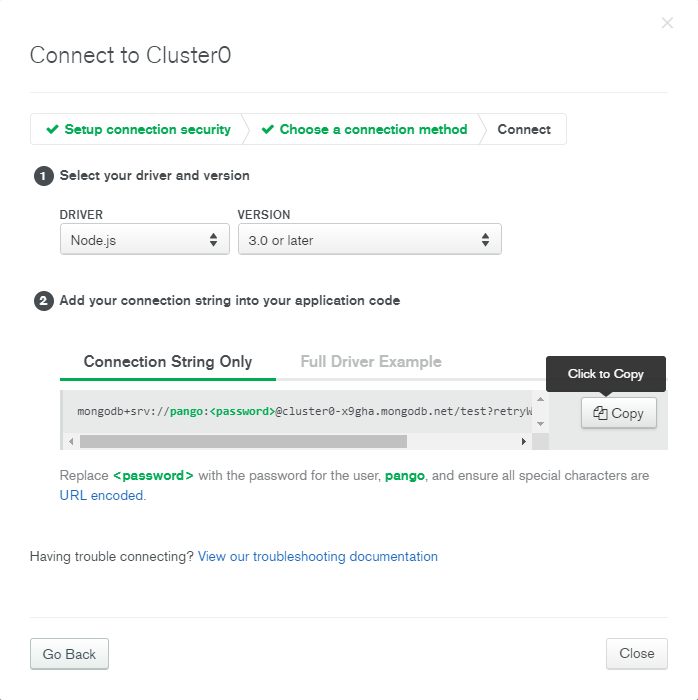
Click on Copy button to copy the connection string.

2.- Open a new connection dialog in Robo 3T
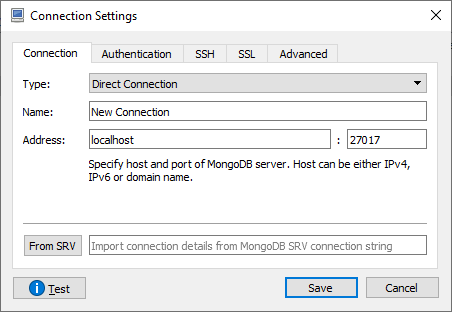
3.- Paste the connection string you copied in step 1 into the textbox close to “From SRV” button and don’t press any button
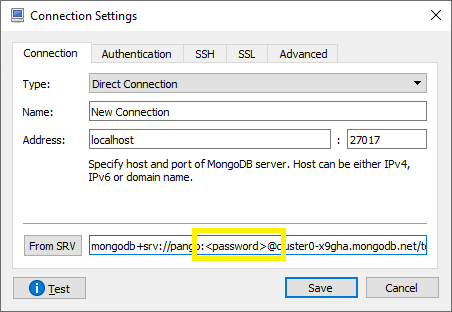
4.- Now, replace the <password> with your actual password for the specified user
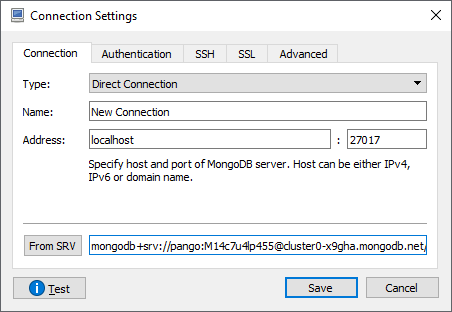
5.- Press now “From SRV” button to import the connection string settings. All the configuration parameters will be applied.

6.- Make sure SSL and SSH options are not checked.

7.- Press Test button and check that the connection works
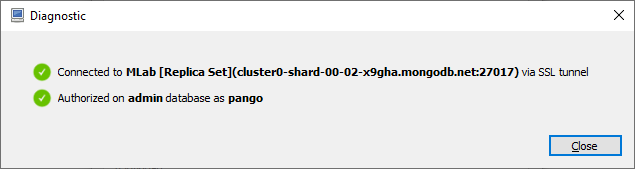
8.- Give a name to your connection and save it

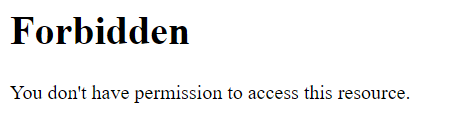
Laravel + Apache + Windows = 403 Forbidden

Just some advice to prevent “403 – Forbidden” error when loading the root page of a new fresh Laravel installation on Windows/Apache:

1.- Do not modify .htaccess file: the issue is not there.

2.- Use virtualhosts configuration in your httpd.conf file

3.- Try to keep your configuration clear and simple. Once you make it work you can add extra features.

This could be a good starting point to configure your VistualHost entry, and please pay special attention to the DirectoryIndex entry:


<VirtualHost *:80>
    DocumentRoot "/var/www/html/yoursite/public"
    DirectoryIndex index.php
    ServerName yoursite.local
    <Directory "/var/www/html/yoursite/public">
        Options Indexes FollowSymLinks
        AllowOverride All    
        Require all granted
    </Directory>
</VirtualHost>